← Guides and reviews / Tech
Buying guide / Tech
How to Replace Your Desktop Tower With a Mini PC: A Practical Guide and Three Picks
What you gain and give up by swapping a tower for a mini PC, a pre-switch checklist, a step-by-step migration plan, and three picks from KAMRUI and ACEMAGICIAN.
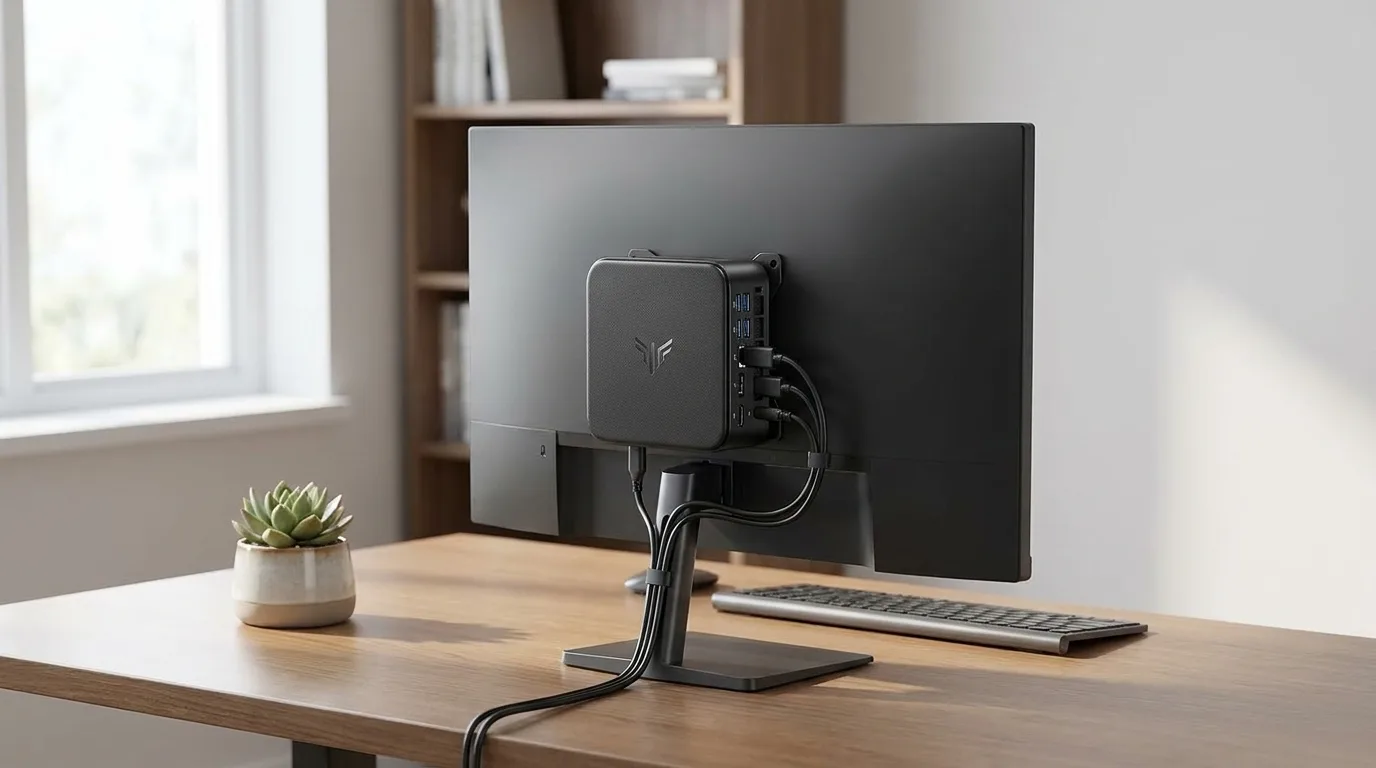
If your desktop tower mostly runs a browser, email, spreadsheets and video calls, it is probably taking up far more room, power and attention than the job requires. A modern mini PC can do the same work from a box about the size of a paperback, often bolted to the back of your monitor where you never see it.
This guide is for people weighing that swap. It covers what you actually gain and give up, a checklist to run before you order anything, a step-by-step migration plan, and three mini PCs that fit different kinds of desks. It is a researched guide built from manufacturer specifications, the Amazon listings and published reviews, not a hands-on test.
Illustration generated by Shop Llama for this guide. See the Amazon listing for actual product photos.
What you gain, and what you give up
You gain space. The KAMRUI E3B, for example, measures 128 by 128 by 41.3mm according to KAMRUI. That is floor or desk space back, and with a VESA mount it takes up no desk space at all.
You gain lower power draw and less noise. Mini PCs use laptop-class processors. The E3B’s chip is rated at 15W (up to 28W) and runs from a 19V external adapter. Even the more powerful ACEMAGICIAN S3A tops out at 54W in its performance mode. A tower with a discrete graphics card and a large power supply usually draws considerably more, and spins more fans to cool it.
You give up a dedicated graphics card. All three picks here use integrated graphics. That is fine for office work, video and photo editing at a hobby level, and older or esports games. It is not a replacement for a gaming tower running new AAA titles at high settings.
You give up some upgradeability. Many mini PCs solder their memory to the board, so the RAM you buy is the RAM you keep. Storage is usually still upgradeable through M.2 slots, but you will not be adding a second graphics card, a sound card or a stack of 3.5 inch hard drives.
Before you switch: the checklist
Monitors and outputs. Count your monitors and note their inputs. A mini PC typically offers one HDMI, one DisplayPort and one USB-C with video. If you run three screens, make sure each monitor has a matching input or budget for the right cable (USB-C to DisplayPort, for example).
Docks and USB-C. If you have a laptop dock or USB-C monitor already, check that the mini PC’s USB-C port carries video (DisplayPort Alt Mode) and not just data. USB4 ports are the most flexible for docks.
Storage, migration and backups. Know how much data is on the tower and where it lives. If the old machine has a large secondary drive, you will either move that data to the mini PC’s spare M.2 slot or to an external drive. Make a full backup before anything else.
VESA mounting. Check the back of your monitor for the standard four screw holes. Some mini PCs include a VESA bracket; confirm on the listing before you count on it.
Windows license. All three picks ship with Windows 11 Pro according to their listings, so you will not need to move your old license. If you do want to carry a retail license over, Microsoft notes that OEM licenses that came preinstalled on a PC are tied to that hardware, and that the edition (Home or Pro) must match for reactivation.
Peripherals. Older devices with PS/2 connectors, internal PCIe cards or optical drives will need USB alternatives. Count your USB devices too: seven ports goes fast once you add a webcam, a headset and a printer.
Step-by-step migration
- Back up everything. Copy your user folders to an external drive or cloud storage, and export browser bookmarks and passwords.
- List your software. Note license keys and sign-ins you will need to reinstall, and deactivate any software that limits installations.
- Set up the mini PC on its own first. Connect one monitor, keyboard and mouse, run Windows Update until it is current, and install your apps. MacSources noted that first-boot updates can take a while.
- Restore your data. Copy files back from your backup, then check that everything opens.
- Move the hardware. Mount the mini PC, connect all monitors, and set display arrangement in Windows settings.
- Keep the tower for a week. Do not wipe the old machine until you have confirmed nothing is missing. Then securely erase its drives before you sell, donate or recycle it.
Quick picks
- Best everyday office pick: KAMRUI E3B, a Ryzen 5 machine with triple 4K output and a spare storage slot.
- Best for heavy multitasking: KAMRUI Hyper H2, with 24GB of memory and a 12 core Intel chip.
- Best for creative work and light gaming: ACEMAGICIAN S3A, with Radeon 780M graphics and a USB4 port.
KAMRUI E3B: the everyday office pick
The configuration to buy is the Ryzen 5 7530U with 16GB LPDDR4X and a 512GB SSD. Watch the name: KAMRUI sells more than one E3B, and Layer3Labs points out that the model name reuse can cause ordering mistakes. Check that the listing title says 7530U.
In practice, it has six cores and twelve threads, Radeon Vega 7 graphics, WiFi 6, Gigabit Ethernet, and HDMI 2.0, DisplayPort 1.4b and USB-C, all rated for 4K at 60Hz. There are two M.2 slots, one supporting NVMe or SATA and one SATA only, with KAMRUI listing up to 4TB total. KAMRUI lists a two-year warranty.
Layer3Labs, working from the specifications, calls it a competent office desktop for reception desks and single workstations, with the soldered 16GB as the main limit. Ryan Mercer reviewed the closely related 7430U version and found it fast for browsing, Office and video calls, and quiet in normal use, though that version uses replaceable memory.
Who should pick it: anyone replacing an office tower that runs productivity software across up to three screens.
The caveat: 16GB is permanent. If you think you will need more, look at the Hyper H2. Check the current price on Amazon.
KAMRUI Hyper H2: more memory for multitasking
The configuration here is the Intel Core 5 220H with 24GB LPDDR5 and a 512GB PCIe 3.0 SSD. The 220H has 12 cores and 16 threads, and the listing pairs it with triple 4K output via HDMI 2.0, DisplayPort 1.4 and USB-C, seven USB ports, Gigabit Ethernet, WiFi 6 and dual fans.
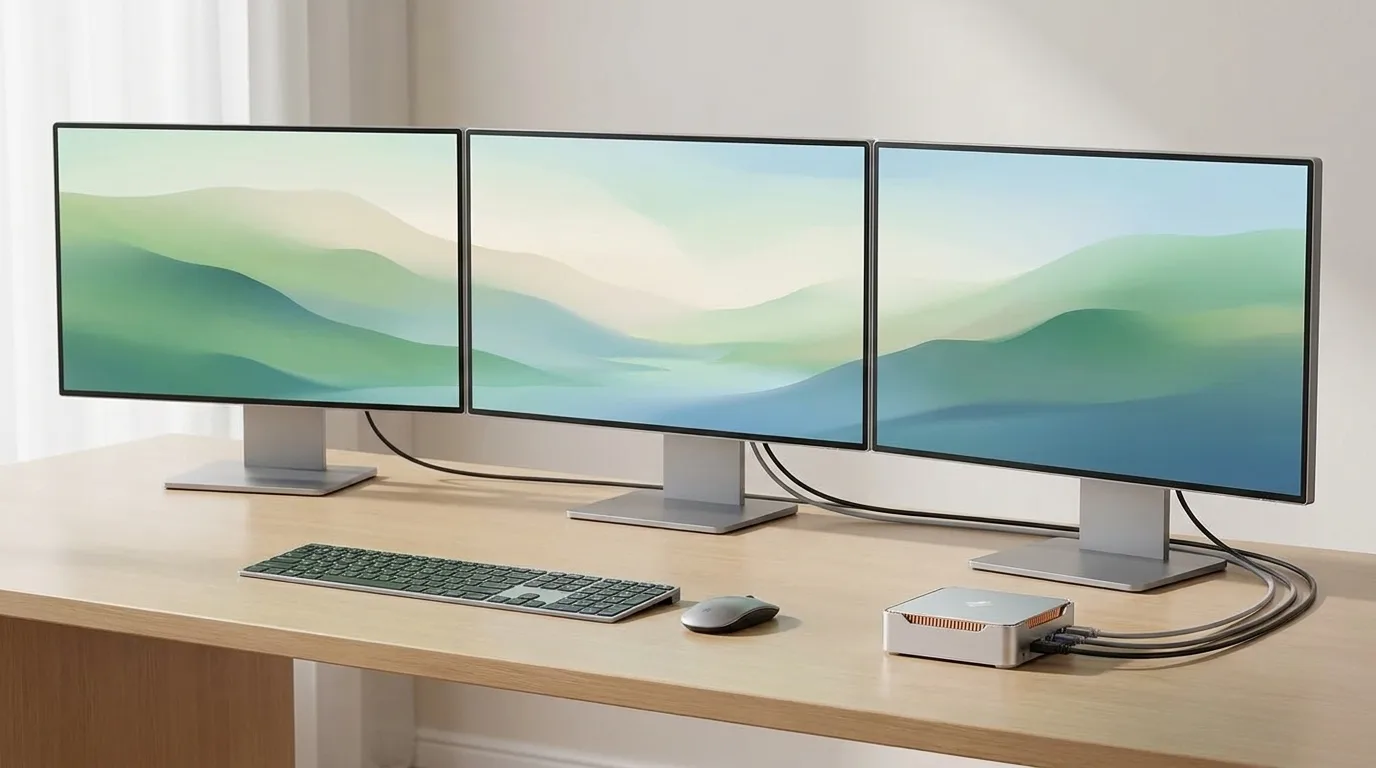 Illustration generated by Shop Llama for this guide. See the Amazon listing for actual product photos.
Published reviews so far cover other Hyper H2 configurations, so treat them as a guide to the chassis rather than this exact chip. Armchair Arcade (Core i5-14450HX version) praised the CPU performance, quiet idle and port selection, but noted the fans ramp up under long heavy loads and that the graphics are not meant for modern games. Armchair Arcade also reported a VESA bracket in the box. MacSources (Core i9 version) liked the compact size and triple display support, but found the split of ports between front and back made cable routing awkward.
The configuration pitfall: the listing says 24GB LPDDR5 but also mentions dual memory slots supporting up to 64GB. LPDDR5 is usually soldered, so ask the seller whether this configuration’s memory can actually be replaced before you plan an upgrade.
Who should pick it: people who keep dozens of browser tabs, large spreadsheets and several apps open at once.
The caveat: Intel UHD graphics are the weakest of the three for gaming. Check the current price on Amazon.
ACEMAGICIAN S3A: creative work and light gaming
The configuration is the Ryzen 7 H 255 with Radeon 780M graphics, 16GB LPDDR5 at 6400MT/s and a 512GB PCIe 4.0 SSD. It is the strongest graphics option here, with three power modes (20 to 35W silent, 30 to 45W auto, 40 to 54W performance), triple 4K output via HDMI, DisplayPort and a USB4 Type-C port, and an upright case with RGB lighting. ACEMAGIC’s page lists dual 2.5Gb Ethernet, VESA compatibility and a two-year warranty.
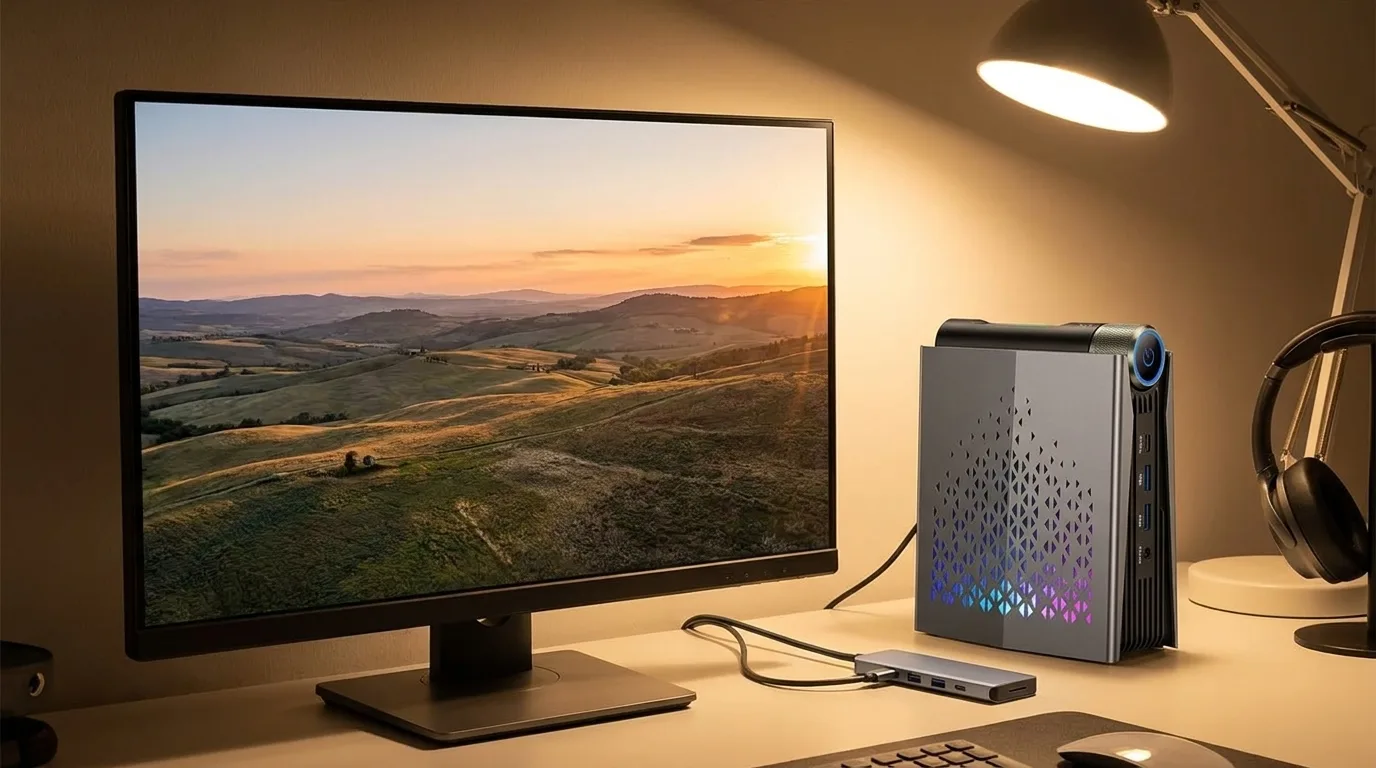 Illustration generated by Shop Llama for this guide. See the Amazon listing for actual product photos.
We did not find an independent review of the S3A itself, so here is what reviewers found about the same chip in other machines. GSMArena’s review of the Beelink SER9 Pro (Ryzen 7 H 255) measured roughly 30fps in Cyberpunk 2077 at 1080p medium and around 40fps in FC 25 at 1080p ultra, with sustained power settling in the low 40W range. Your results in the S3A will depend on its cooling and memory.
Who should pick it: photo editors, hobby video editors, developers, and anyone who wants casual 1080p gaming without a tower.
The caveat: the 16GB is soldered, and the RGB styling will not suit every office. Check the current price on Amazon.
How to choose
Memory first. It is the spec you are least likely to be able to change later. PCWorld’s guidance is a good rule of thumb: 16GB for everyday use, more for heavy multitasking.
Graphics needs. Office work runs fine on any of these. For editing and games, the Radeon 780M in the S3A is the clear step up.
Display outputs. Match each monitor to a port before you buy, and confirm the USB-C port carries video.
Storage expansion. Look for a free M.2 slot and note its type (NVMe or SATA only).
Mounting and noise. Check for an included VESA bracket and a quiet mode if the PC will sit near you.
Confirm the exact configuration. Mini PC brands reuse model names across different chips, so read the processor, memory and storage in the listing title before checkout.
The bottom line
For a straightforward office tower replacement, the KAMRUI E3B covers the basics in a tiny box. If you multitask hard, the Hyper H2’s 24GB gives more room. For creative work or casual gaming, the ACEMAGICIAN S3A is the one to look at. Check the current price on Amazon for each.
Want more options? Our 32GB-class mini PC buying guide covers higher-memory machines, and the budget mini PC guide focuses on entry-level picks. You can also browse the tech category.
The products
KAMRUI E3B (Ryzen 5 7530U, 16GB, 512GB)
Check price on Amazon →As an Amazon Associate I earn from qualifying purchases.
KAMRUI Hyper H2 (Core 5 220H, 24GB, 512GB)
Check price on Amazon →As an Amazon Associate I earn from qualifying purchases.
ACEMAGICIAN S3A (Ryzen 7 H 255, Radeon 780M, 16GB, 512GB)
Check price on Amazon →As an Amazon Associate I earn from qualifying purchases.
Amazon prices change often, so we do not list them here. Each button opens the current Amazon listing.
Sources
- KAMRUI: KAMRUI E3B Mini PC specifications
- ACEMAGIC: ACEMAGIC S3A AMD Ryzen 7 H 255 Mini PC
- Layer3Labs: KAMRUI E3B (Ryzen 5 7530U) Mini PC Review
- Ryan Mercer: KAMRUI E3B Mini PC Review (Ryzen 5 7430U, 16GB RAM)
- Armchair Arcade: KAMRUI Hyper H2 Mini PC review: A compact CPU powerhouse
- MacSources: KAMRUI Hyper H2 Mini PC Review
- GSMArena: Beelink SER9 Pro mini-PC with AMD Ryzen 7 H 255 review
- PCWorld: Best mini PC deals: Top Intel and AMD picks
- Microsoft Support: Reactivating Windows after a hardware change
Free weekly email
Get the Shop Llama Deal Drop
Fresh markdowns we spotted, straight to your inbox.
Fresh deals will land in your inbox soon.
Keep reading
Tech Gifts People Actually Use: A Holiday Guide by Who's on Your List
Six well-reviewed tech gifts from Bose, Kindle, Apple, Anker, Echo and Aura, organized by recipient, plus the ecosystem, return and charger checks to make before you wrap.
Read the guide → Buying guideSmart Home Starter Guide: The First Six Devices to Buy and How to Make Them Work Together
A researched starter bundle from Amazon, Kasa, Philips Hue, Ring, Blink and Google Nest, plus Matter, Thread, 2.4GHz setup, camera subscriptions and privacy in plain English.
Read the guide →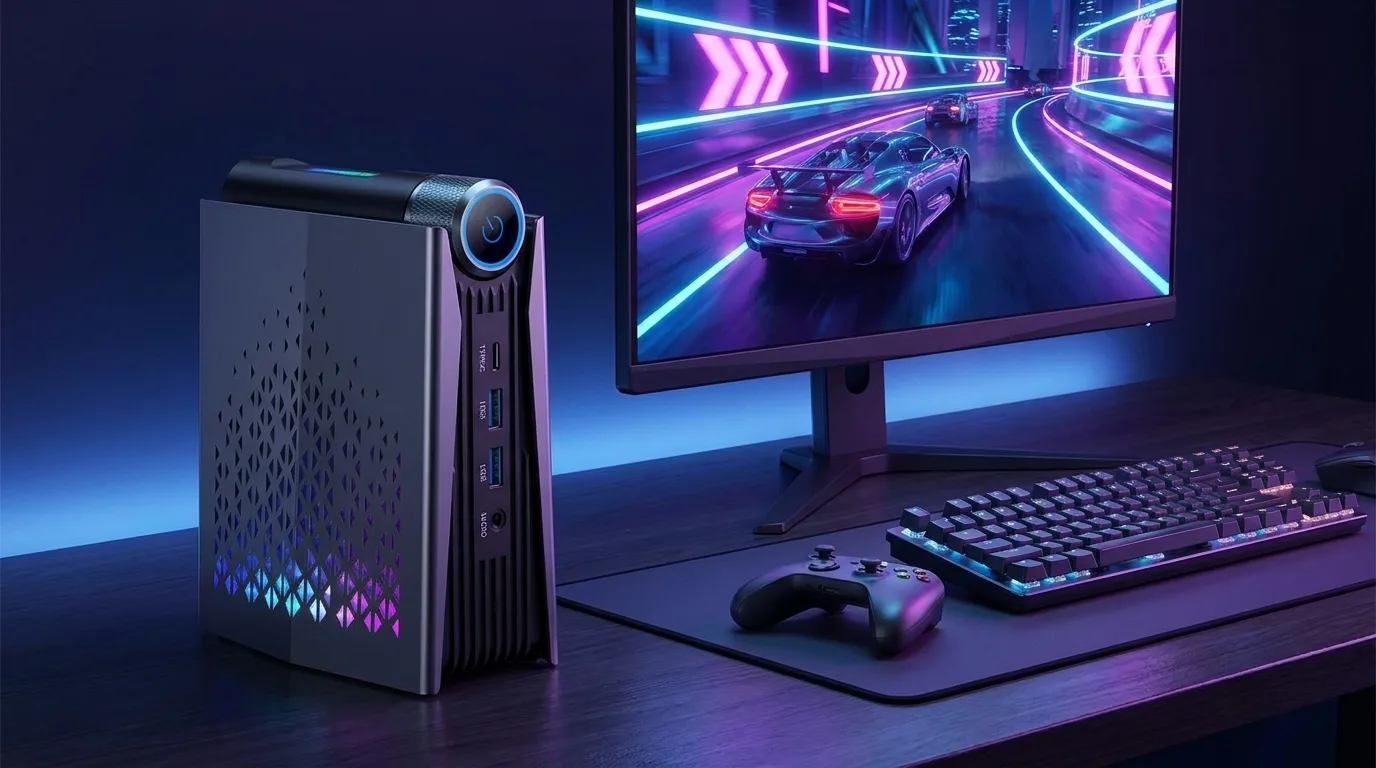 Comparison
 ACEMAGIC M1 vs S3A: Which Gaming Mini PC Fits Your Desk (Radeon 680M vs 780M)?
Two ACEMAGIC gaming mini PCs side by side: what Radeon 680M and 780M graphics really handle, soldered memory, cooling and noise, ports, eGPU options and who should buy which.
Read the comparison →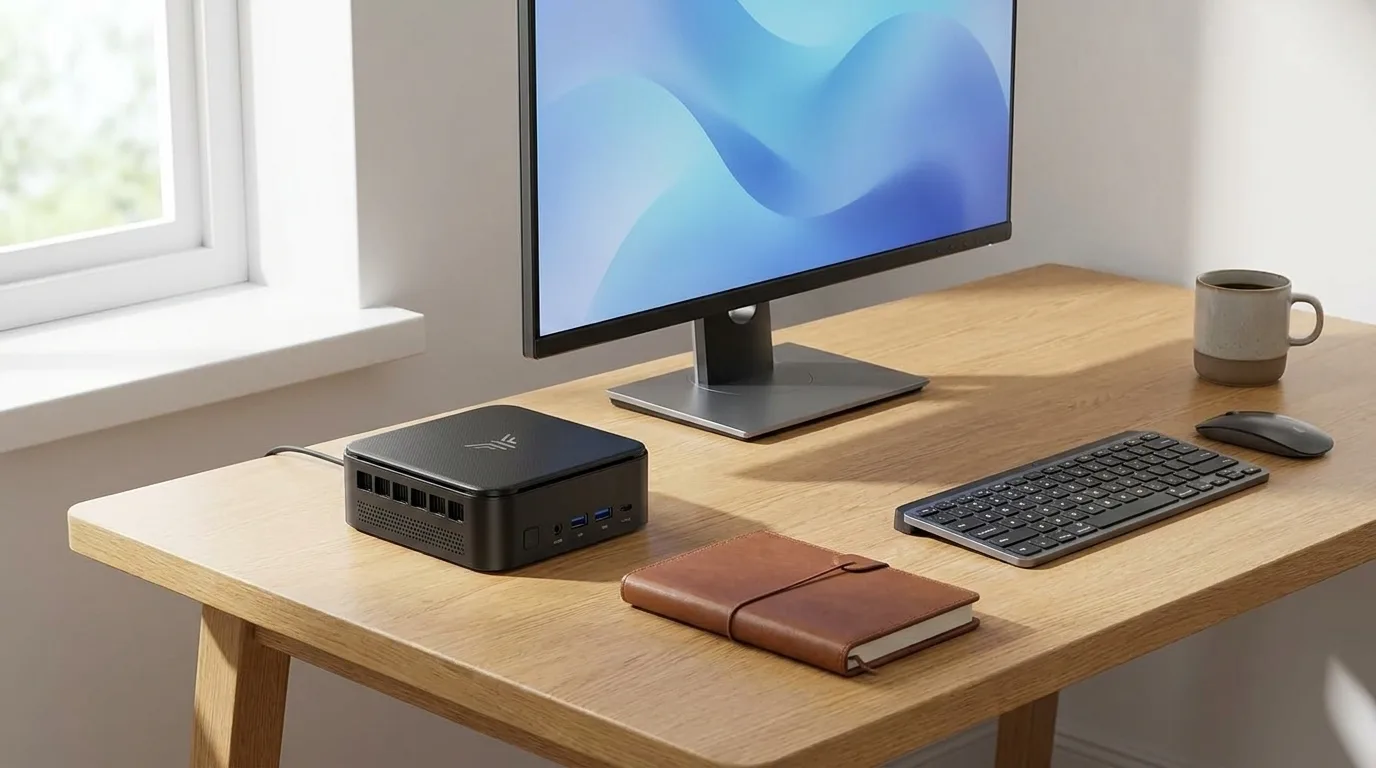 Buying guide
 Budget Mini PCs for Home and Office: A Fall 2026 Guide to Four Small Desktops
KAMRUI and ACEMAGIC mini PCs compared on processor generation, soldered vs upgradeable RAM, SSD slots, display outputs and Wi-Fi, with who each one fits.
Read the guide →